Why can't I save images in the asset picker when using Windows Remote Desktop or AVD?
Last updated: August 11, 2026
Context
When accessing the Uniform Platform through a Windows Remote Desktop (RDP) or Azure Virtual Desktop (AVD) session, you may find that clicking the "Back to current selection" or "Back to asset" button in the Uniform Asset Library picker appears to do nothing, preventing you from saving a selected image to a component. The image uploads successfully, but the selection cannot be completed. This issue does not affect users accessing Uniform directly (outside of a remote desktop environment).
Answer
This behavior is caused by Windows animations being disabled in the Remote Desktop or AVD session. When animations are turned off, one of the asset picker's transition panels stops sliding out of view and remains invisibly on top of the next screen. As a result, clicks on buttons like "Done" or "Back to asset" land on the invisible panel instead of the button itself.
To resolve this, enable Windows animations on the remote machine or AVD session:
On the Windows machine (or within your AVD session), open Settings.
Navigate to Accessibility → Visual effects.
Toggle Animation effects to On.
Reconnect to your remote session and retry selecting and saving the image in the asset picker.
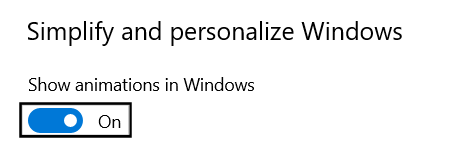
After enabling animations and reconnecting, the asset picker should function normally and allow you to select and save images to your component.
Note: The exact navigation path to the animation settings may vary slightly depending on your Windows version or AVD configuration. If you are unable to change these settings yourself, please contact your IT administrator to enable animation effects on your remote desktop environment.