Configuring Responsive Components for Different Viewports
Last updated: February 4, 2026
Overview
Viewport-based personalization allows customers to deliver optimized experiences across different device types and screen sizes. Since users on mobile devices often have different intent and behavior patterns than desktop users—such as being on-the-go, having limited screen space, or using touch interfaces—content, layouts, and calls-to-action can be tailored accordingly. This ensures that whether a visitor is browsing on a smartphone during their commute or on a desktop at work, they receive the most relevant and usable experience, ultimately improving engagement rates and conversions.
Here are some examples where it may be useful
Different styling/size/color based on the viewport
Different content based on the viewport
Show/hide component only for a particular viewport
While it is be possible to configure the component visibility or styling using Uniform visibility settings or conditional parameters, this approach may result in a flicker on the very first visit. This is caused by the device viewport information only being available client-side, while the server renders the default variant. The the solution below does not rely on visibility settings or conditional parameters and uses Tailwind CSS features.
Solution
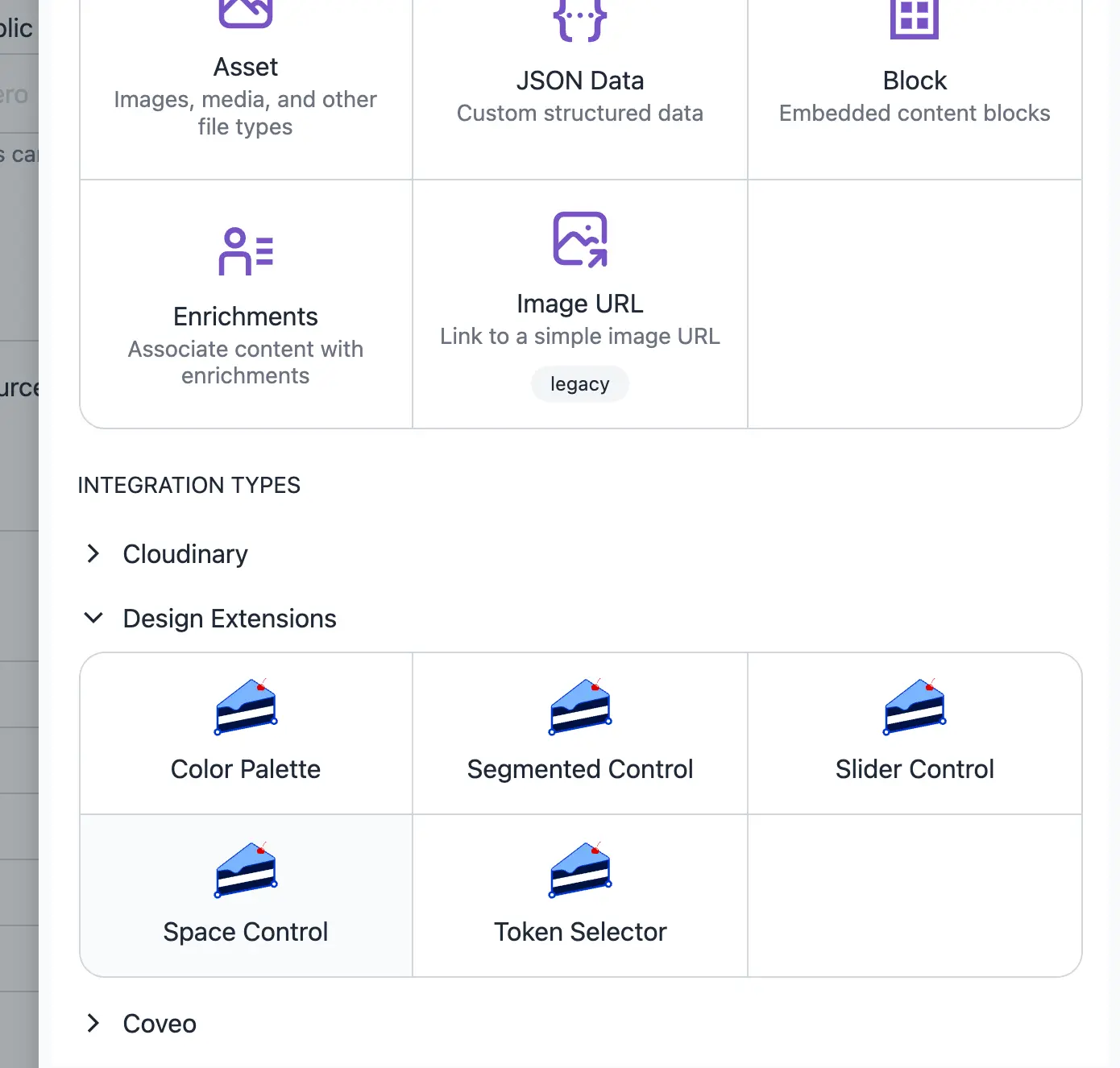
Step 1: Install the Design Extension integration into your project.
This will add additional parameter types in our Component Starter Kit
You don't really need the Design Extension integration. It provides component parameter types with built-in device selector so you don't have to come up with a custom solution
Step 2: Add the new Design Extension parameters
Add the new Design Extension parameters to your components, which you want to have different values for each viewport. Check the Vary by view port checkbox, which will now add a selector between desktop, mobile or tablet on the parameter
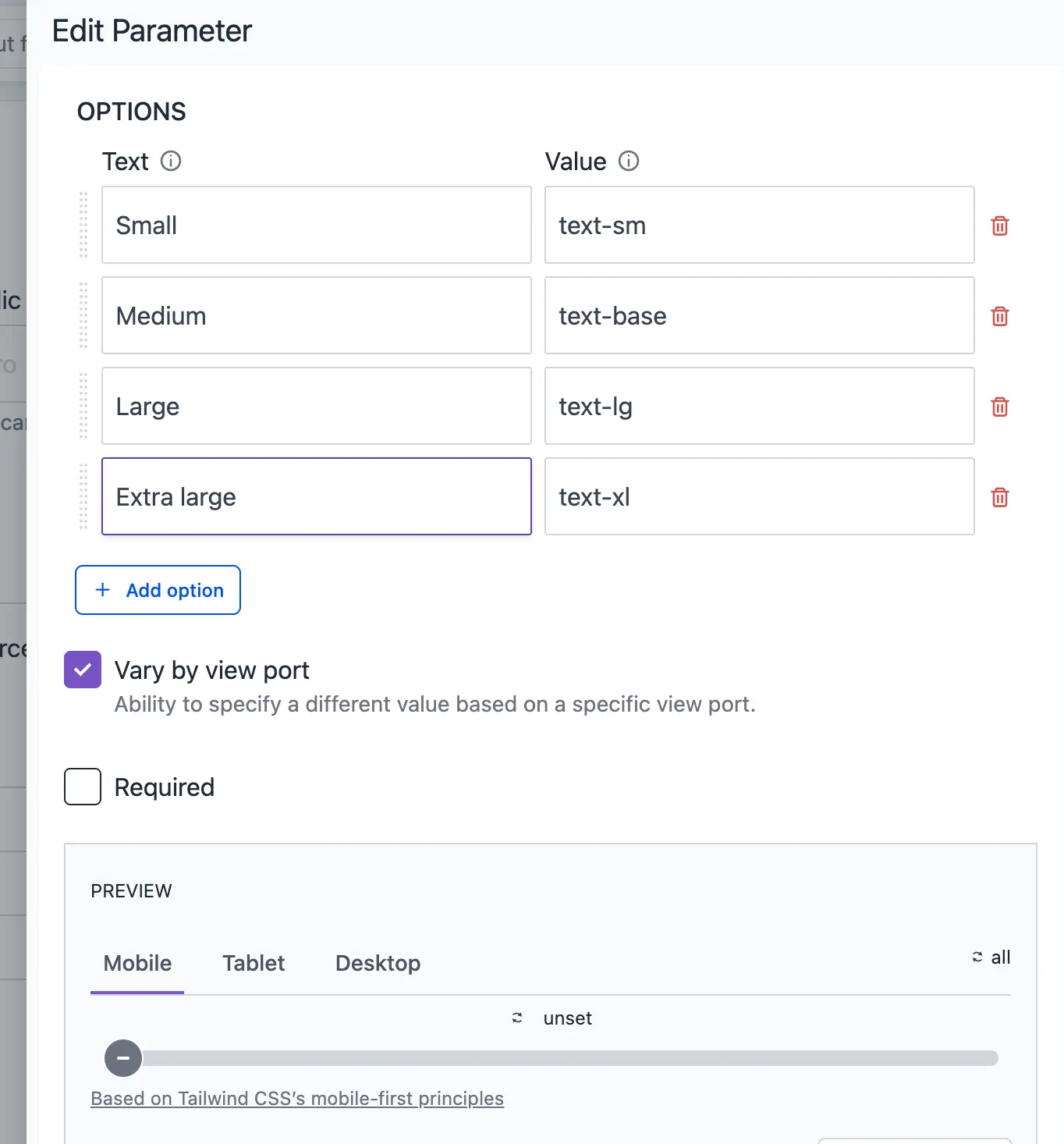
The parameter will passed to your components like this:
{
  "mobile": "text-lg",
  "tablet": "text-base",
  "desktop": "text-sm"
}
This sample is based on NextJS app router with Tailwind, but it is expected to work on any framework that supports Tailwind, such as NextJS pages router or Vue/Nuxt
Step 3: Add css rule
Translate the parameter value into a CSS rule. In this example, we use Tailwind responsive design, but a similar approach should be possible with other frameworks or pure CSS.
<div className={`sm:${textSize?.mobile} md:${textSize?.tablet} lg:${textSize?.desktop}`}>
  Responsive Text
</div>
You can also setup to hide/show components using the same approach. For example, the parameter value looks like this:
{
  "mobile": "true",
  "tablet": "true",
  "desktop": "false"
}
And here is the React code sample:
<div
  className={`
    ${visibility.mobile === "true" ? "block" : "hidden"}
    sm:${visibility.tablet === "true" ? "block" : "hidden"}
    lg:${visibility.desktop === "true" ? "block" : "hidden"}
  `}
>
  Responsive Content
</div>
Resources
Last Updated: January 28, 2026